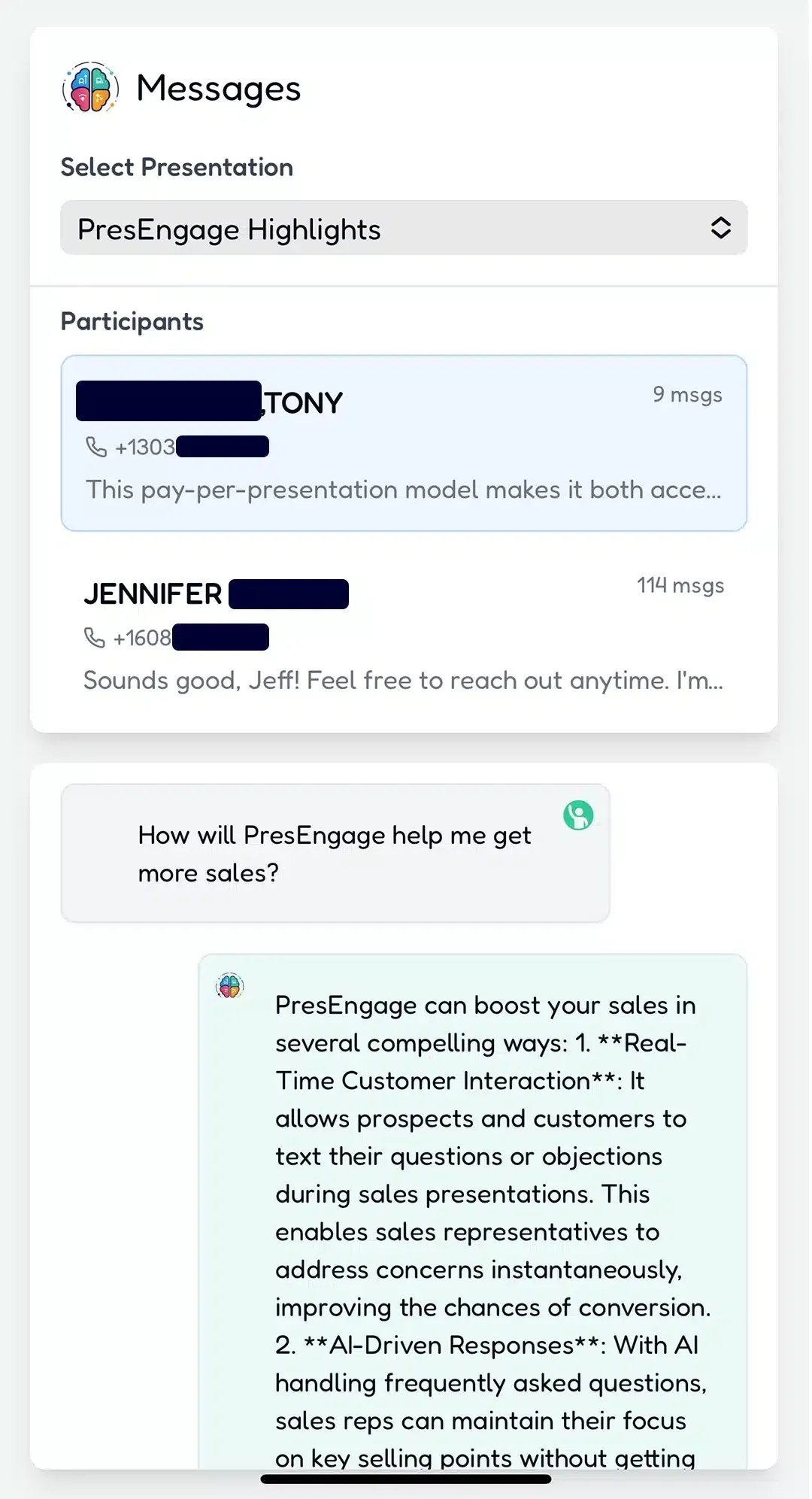
The fastest way to get a whole audience into your deck, poll, or Q&A is a QR code on the screen and a short URL underneath it. People scan with the camera already open on their phone, the browser opens, and they are in — no app store, no typing a long link, no login. Done well, you go from “slides on a screen” to “every person participating” in about ten seconds. Done badly, it is a tiny square in the corner that nobody can read and nobody scans.
The difference is almost entirely in the details below. I have run enough rooms — and watched enough presenters fumble this — to know that the QR code itself is the easy part. The placement, the size, and the one sentence of instruction around it are what decide whether anyone actually joins.
Why a QR code beats every other join method
Before the mechanics, the case for bothering. You have three realistic ways to get an audience into a live tool: read out a URL, have them type a short link, or scan a code. Reading a URL out loud fails the moment it has a slash or a hyphen in it. Typed short links are better but still cost you the slow tail of people squinting, mistyping, and giving up. A QR code collapses all of that into a single physical motion everyone already knows.
It also solves the thing that quietly kills participation: friction at the door. The biggest predictor of whether people engage is not how interesting your content is — it is how many steps stand between them and their first action. Scan-to-join is one step. That is why it is the default way to get attendees into a browser-based room, and why pairing it with a tool that needs no app at all is so effective. When PresEngage® lets you share slides and a join link instantly in the browser, the QR code is just the visual on-ramp to a room that is already friction-free on the other side.
Where to put the QR code
The single most common mistake is treating the QR code as a one-slide event. Someone steps out for coffee, comes back, and the join slide is long gone. Fix that by giving the code more than one home in your deck:
- A dedicated holding slide before you start. While people filter in, a big QR code with one line of instruction does your onboarding for you. By the time you say your first word, half the room is already in.
- A persistent corner or footer. Drop a smaller version into your slide master so it lives quietly in the same spot on every content slide. Latecomers and second-thoughts always have a way in.
- The closing slide. This is your highest-intent moment — people who want the recording, the deck, or to keep asking questions. Make the code prominent here, paired with what they get by scanning.
For multi-session events, standardize the pattern across every room. If attendees learn the join motion once on day one, they stop thinking about it for the rest of the event.
Size, contrast, and the things that actually break scans
A QR code is just data encoded in contrast, and three physical factors decide whether a camera can read it from a seat:
Make it bigger than feels necessary. A rough field rule: scanning distance divided by ten is your minimum code width. Someone 20 feet back needs roughly a 2-inch code on screen; a packed ballroom needs it larger still. Err on the side of oversized — a too-big code scans fine, a too-small one is just decoration.
Protect the contrast. Dark code on a light background, full stop. Avoid placing it over a busy photo, a gradient, or a brand color that flattens the contrast. Keep a clear quiet zone (empty margin) around all four sides — codes printed flush to other elements often fail to register.
Mind the projector and the glare. A code that scans perfectly on your laptop can die on a low-contrast projector or a glossy screen with stage lights bouncing off it. If you can, test it from the back of the actual room before doors open. Thirty seconds of testing saves you a dead join slide in front of 200 people.
And always print the short URL underneath. Some people are on a laptop, some have a camera that is being stubborn, and some just prefer typing. The URL is your fallback path, not an afterthought.
Add the one sentence that triples scans
A bare QR code gets ignored because people do not know what it does or why they should bother. The fix is a single benefit-led line: “Scan to ask a question — answered live” or “Scan to vote on what we cover next.” Tell them the action and the payoff. A code that promises something specific gets scanned; a code floating in space does not.
What the scan should open
The scan is only half the equation — what loads on the other side matters just as much. If the code drops people onto an app-store page or a login wall, you have spent your goodwill getting them to scan only to lose them at the door. The destination should be as frictionless as the QR code itself: a browser-based room they can use immediately, anonymously if they want, with nothing to install. That is the whole point of pairing a QR join with an AI-powered live Q&A that runs entirely in the browser — the scan and the experience are equally zero-friction.
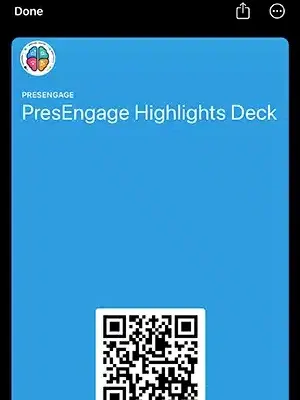
There is a nice second act here, too. Because the scan opens a real session in their hand, you can hand attendees something to keep — a digital wallet pass with your session link, slides, or follow-up that lives in Apple Wallet or Google Wallet long after the room empties, available on the free plan and with the in-person paid plans. The QR code that got them in can also be the thing that brings them back.
A simple, reliable setup
If you want a setup that just works, do this: generate one short link for your session, turn it into a high-contrast QR code, and place it three times — a big version on a holding slide, a small persistent version in your footer, and a prominent version on the closing slide. Add one benefit line beside each. Print the short URL underneath. Test it from the back row. That is the entire playbook, and it will out-perform a fancier setup that skips the basics every time.
Try it on your next talk
The easiest way to see why scan-to-join changes a room is to run it once. PresEngage starts free — 14 days of everything, then your next 25 audience connections free, total across all your presentations — with genuinely nothing to install on either side — you put the QR code on a slide, your audience scans, and they are asking questions before you finish your intro. Start for free, drop a code on your next deck, and watch how fast a quiet room turns into a participating one.
You Finish. Your Presentation Doesn't.
Free forever for up to 25 audience members — start with a 14-day free trial.
No credit card · Free forever for up to 25 audience members · 14-day full-feature trial
Keep exploring