In today’s digital age, presentations are key tools for communication—whether you’re delivering a business pitch, an academic lecture, or a training session. But once your presentation is over, how do you ensure your audience can access, review, and share your content easily? The answer: Convert your presentation to PDF.
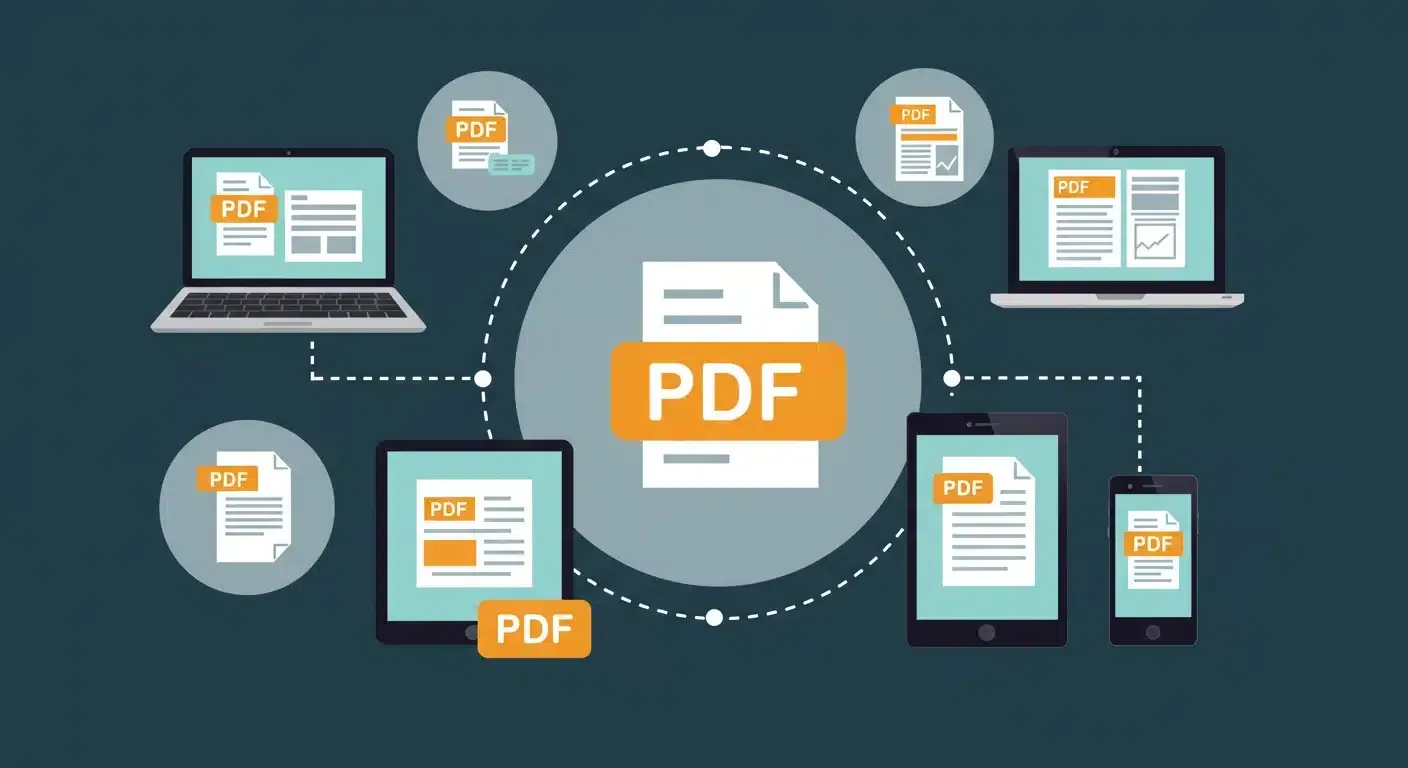
A PDF (Portable Document Format) is a universal file format that preserves your slides’ layout, fonts, and images while making them easy to distribute and access across different devices. In this guide, we’ll explore:
- Why converting to PDF is important
- Step-by-step instructions for different platforms: PowerPoint, Keynote, Google Slides, Prezi, and Canva
- Best practices for sharing your PDF presentations
Let’s dive in!
TL;DR — The fastest, highest-quality way to convert PowerPoint to PDF is PowerPoint’s built-in export: File → Export → Create PDF/XPS → Publish (or File → Save As and choose PDF). No third-party tool is needed and your formatting is preserved. On Google Slides, use File → Download → PDF; in Keynote, use File → Export To → PDF.
Why Convert Your Presentation to PDF?
Before we get into the “how,” let’s explore the key benefits of converting your presentation to PDF.
1. Universal Accessibility
Unlike PowerPoint, Keynote, or Prezi files that require specific software, PDFs can be opened on any device (Windows, Mac, tablet, or smartphone) without special software.
2. Preserves Formatting
Fonts, images, layouts, and animations remain intact in a PDF, ensuring that your presentation looks the same no matter where or how it’s viewed.
3. Smaller File Size for Easy Sharing
PDFs compress images and content, making them significantly smaller than PowerPoint, Keynote, or Canva files—ideal for emailing and uploading.
4. Secure & Read-Only Format
Need to share your slides without allowing edits? PDFs are read-only, preventing unauthorized modifications. You can even password-protect your PDF if needed.
5. Print-Ready Format
If you need a physical copy of your presentation, PDFs maintain high-quality prints without worrying about layout issues.
How do you convert a presentation to PDF?
Method 1 — Convert PowerPoint to PDF (native, best quality)
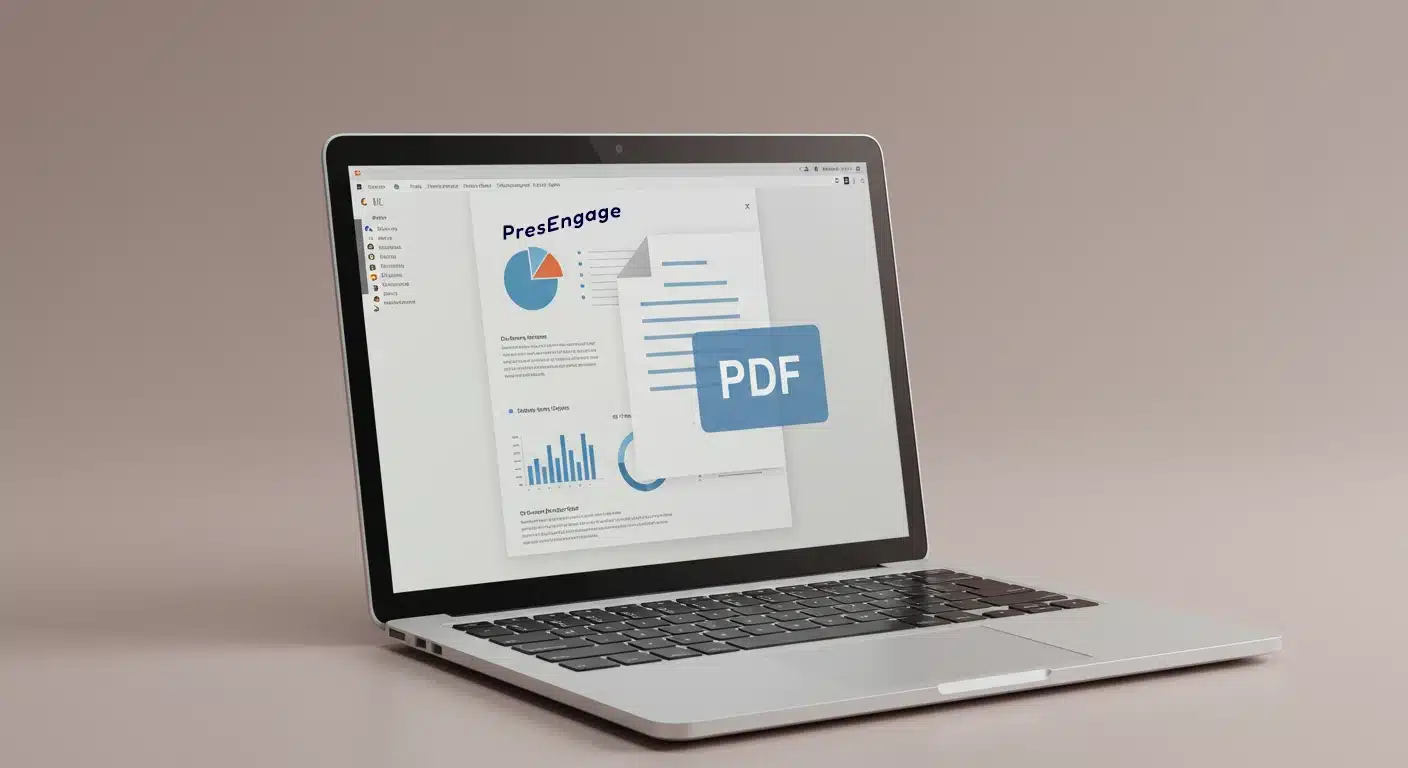
PowerPoint is one of the most widely used presentation tools, and its built-in export is the fastest, highest-quality way to convert PowerPoint to PDF—no third-party tool needed. Here’s the native path, which matches Microsoft’s own steps:
- Open your PowerPoint presentation.
- Click File → Export → Create PDF/XPS Document, then Create PDF/XPS (or use File → Save As and choose PDF from the file-type list).
- Select PDF as the file format.
- Click Options to adjust settings like including speaker notes or choosing specific slides.
- Click Publish (or Save) to generate the PDF.
✅ Bonus Tip: If you want to email your slides, use File → Reduce File Size before saving as a PDF.
Once it’s exported, you can make the live version do more than sit in an inbox—turn it into an interactive PowerPoint presentation that invites real-time questions and polls.
Apple Keynote to PDF
For Mac users, Keynote makes it simple to export presentations as PDFs:
- Open your Keynote presentation.
- Click File → Export To → PDF.
- Choose whether to include slides with or without transitions.
- Click Next, then select where to save your file.
- Click Export to finalize.
✅ Bonus Tip: Use File → Reduce File Size before exporting to shrink the file size.
Presenting live on a Mac? You can turn that same deck into an interactive Keynote presentation with audience Q&A.
Google Slides to PDF
Since Google Slides is cloud-based, exporting to PDF ensures offline access and easy sharing.
- Open your Google Slides presentation.
- Click File → Download → PDF Document (.pdf).
- The file will download to your device automatically.
✅ Bonus Tip: Google Drive allows sharing PDF links directly without needing to download the file.
For live sessions, make your Google Slides interactive so the whole room can respond from any browser.
Prezi to PDF
Prezi is a unique, zoom-based presentation tool. Unlike PowerPoint, it doesn’t use linear slides, but you can still export it as a PDF:
- Open your Prezi presentation.
- Click the Share button and select Export PDF.
- Prezi will convert each slide into a separate page.
- Click Download to save the PDF to your device.
✅ Bonus Tip: PDFs from Prezi can be printed as handouts for training or reference.
Hosting it live? Add audience engagement to your interactive Prezi presentation.
Canva to PDF
Canva is popular for its visually stunning presentation templates. Converting a Canva presentation to PDF is straightforward:
- Open your Canva presentation.
- Click Share (top-right corner) → Download.
- Choose PDF Standard (best for online sharing) or PDF Print (high resolution).
- Click Download and save the PDF.
✅ Bonus Tip: If your PDF is too large, Canva offers compression options during export.
Sharing it with a live audience? Make your Canva presentation interactive with real-time AI Q&A answered from your own slides.
Method 2 — Online converters (when you can’t open the app)
If you don’t have the original app handy, a browser-based converter—such as Adobe Acrobat online, Smallpdf, or iLovePDF—can turn a PPT, PPTX, or Keynote file into a PDF in a few clicks. It’s convenient, but the app’s native export almost always preserves fonts, layout, and image quality better, so reach for an online tool only when you can’t open the source file—and avoid uploading anything sensitive to a third-party site.
How do you share a PDF presentation?

Once you have your PDF presentation ready, here are some best practices for sharing it effectively:
📩 Email: Attach your PDF directly or use a cloud storage link (Google Drive, Dropbox, or OneDrive).
🌐 Website Upload: If your presentation is meant for public access, upload it to your website or blog for easy downloads.
📱 Mobile Optimization: Ensure your PDF is readable on mobile devices—use larger fonts and high-contrast colors.
🔐 Secure Sharing: If your presentation contains sensitive information, encrypt your PDF or set a password before sharing.
🖨️ Handouts & Printouts: If your audience needs a hard copy, PDFs ensure high-quality printing.
PresEngage®: Share your slides instantly and digitally from any browser with PresEngage Audience Connect.
Frequently asked questions
How do I convert PowerPoint to PDF?
In PowerPoint, choose File → Export → Create PDF/XPS (or File → Save As and pick PDF).
Can I convert PPT to PDF without software?
Yes—Google Slides or an online converter works, but PowerPoint’s native export preserves formatting best.
How do I convert without losing formatting?
Use the native Export / Save As PDF, embed fonts, and choose standard (print) quality.
Why can’t I convert my PPT to PDF?
Usually a corrupted file, unsupported fonts, or very large embedded media—try Save As → PDF, or repair the file first.
How do I convert Google Slides or Keynote to PDF?
Google Slides: File → Download → PDF. Keynote: File → Export To → PDF.
Final Thoughts: Converting Presentations to PDF is a MUST

Whether you’re a business professional, teacher, keynote speaker, or marketer, PDF conversions ensure your presentations are accessible, shareable, and secure. A clean export is just one piece of a smooth setup — the right hardware matters too, so it’s worth seeing how to use a presentation clicker to power better audience connection once your file is ready to roll.
🚀 Need an interactive way to engage your audience? A PDF is static, but PresEngage’s real-time AI Q&A keeps your live deck interactive—answering audience questions straight from your slides, in 100+ languages, with no app to download. Start Free and enhance your presentations with live Q&A and audience engagement tools.
🔗 Want more presentation tips? Browse our presentation tools and tech guides for expert insights on creating, sharing, and optimizing presentations!
You Finish. Your Presentation Doesn't.
Free forever for up to 25 audience members — start with a 14-day free trial.
No credit card · Free forever for up to 25 audience members · 14-day full-feature trial
Keep exploring